See inside your running scripts.
miniVivisection extends the debugger of Rhino 8's Script Editor. When a script stops, the geometry in its variables appears in Rhino's viewports; you can edit it with Rhino's own tools and send it back into the running script. Values show up right in the code, breakpoints get conditions, and Rhino stays usable the whole time.

Rhino's debugger shows text, not shapes.
Rhino 8's debugger can pause a script, but it shows the script's values only as text, such as "Curve" or a list of numbers. While a script is paused, Rhino itself is blocked, so you can't even look around the model. And a script that hangs can only be ended by closing Rhino.
Features
For Python 3 scripts in Rhino 8's Script Editor; most of it also for Grasshopper's script components. Limits: C# and IronPython 2 scripts get a subset. The manual explains each one.
See values while paused
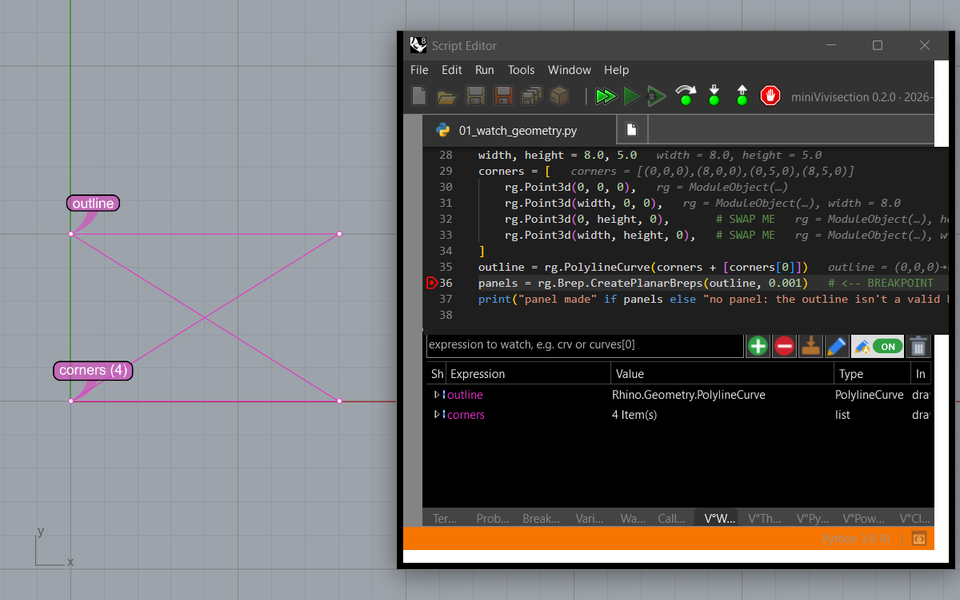
- V°Watch draws watched values in Rhino: points, curves, meshes, planes, vectors, with name dots.
- In the code: values in tooltips and at the ends of lines, what changed since the last pause, a value tree, a preview on hover.
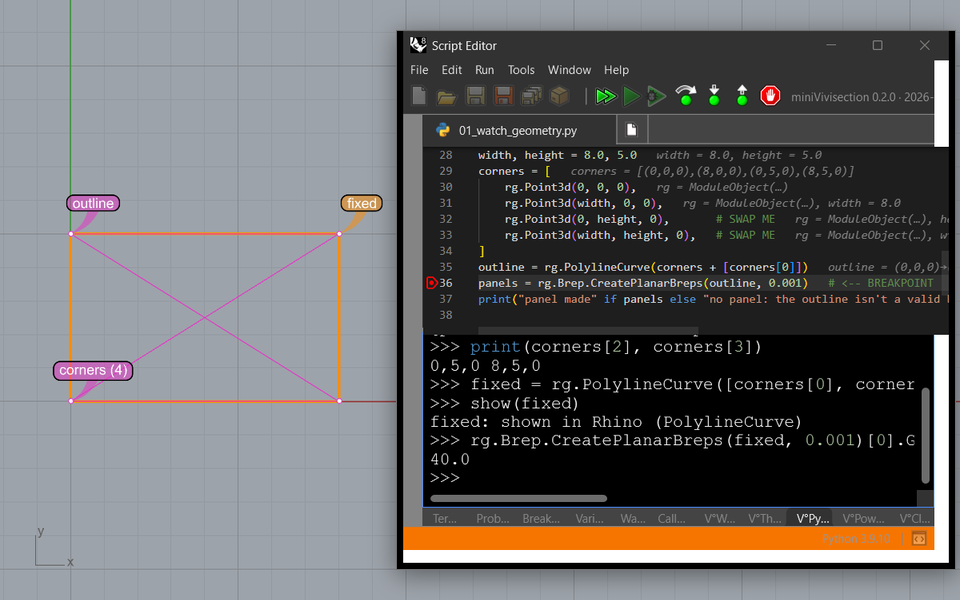
- Edit in Rhino: move, reshape or rebuild a value with Rhino's tools and write it back into the paused script, with Undo.
- Bake values into the document, and draw your own types with visualizers.
Stop where you want
- Conditional breakpoints, hit counts and log messages.
- Break now (Ctrl+Alt+B) pauses a running script at its next line, even one running on Rhino's UI thread; a sound confirms.
- Stop once per line for comprehensions and one-line loops.
- Run runs plainly; Debug always runs in the debugger.
- FreePause: select, measure and run commands while the script waits.
Scripts from the command line
- Stop and record:
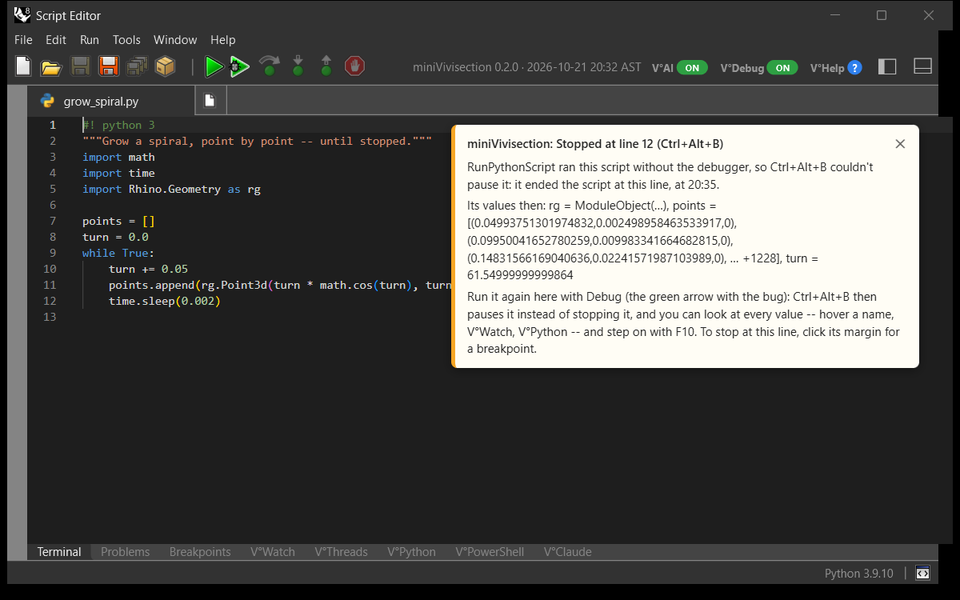
RunPythonScriptruns at full speed.- Ctrl+Alt+B stops it (an error is recorded too).
- The Script Editor then opens it at that line, with the call stack and values of that moment, and an explanation.
- Debug mode: run it in the editor's debugger instead.
Threads
- V°Threads: every thread of the script, where it is and what it waits for.
- Where is everyone? finds hangs and deadlocks while the script runs.
- Watches in every thread, and a freeze guard.
Prompts and lessons
- V°Python in the paused frame, V°PowerShell, and V°Claude: debugging with Claude, optionally in the Rhino model through RhinoAI. By default, Claude asks before it runs code. Its edits to a script that is running, paused or stopped at an error wait until the run has ended.
- Syntax colors and font size in all three.
- The V° names: the mark between V and the name is a setting: °, a bar, or a bar with thin spaces.
- Lessons, your own copies:
- 17 lessons in the editor's Examples tab, each with a bug the debugger helps find.
- 12 Grasshopper lessons (.gh definitions).
- A Rhino model with Markdown text and links.
Markdown text in Rhino
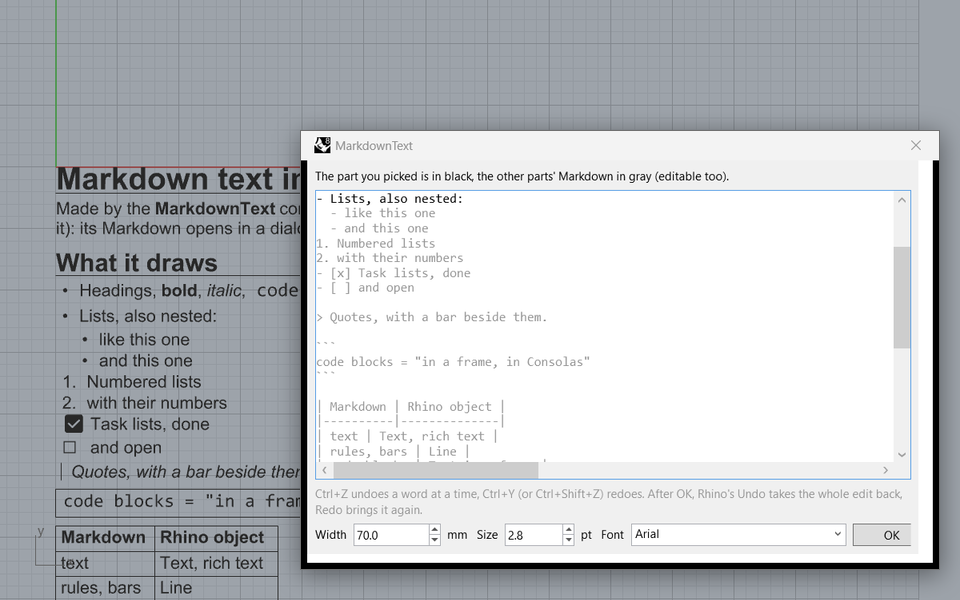
- MarkdownText makes Markdown into Rhino text: headings, bold, italic, code, lists, task boxes, quotes, code blocks, tables.
- Double-click any part to edit its Markdown, the caret at that part; the same objects are updated in place, and changes made in Rhino are taken back in. In the editor, Undo goes back a word at a time; in Rhino, one Undo takes the whole edit back.
- Links to Rhino objects and named views, and into Grasshopper definitions: click one to follow it (or Ctrl+click, a setting); a hint by the mouse says where it goes. Blue words with a line under them; the color, the line's thickness and its distance from the text are settings.
Debug components. Find the branch that broke.
Script components get the same debugger as scripts, and their failing data gets a name you can paste.
Debugging components
- Three modes, switched with the V° button on Grasshopper's toolbar:
- Normal: components run plainly.
- Stop and record (the default): Ctrl+Alt+B stops a component that hangs, and its editor opens at the line it was on, with an explanation.
- Always debug: every recompute runs in the debugger, so a slider change stops at your breakpoints.
- Pause, not only stop: with Always debug, every Python 3 component gets a hidden script editor (up to 24).
- Ctrl+Alt+B pauses even a component whose editor you never opened.
- The editor comes up at that line, and you continue or step on.
- Recomputes asked for while a script is paused wait until the solution ends: no "expired during a solution" dialog.
- The canvas while paused: pan, drag and hover; deleting waits until the pause ends.
- Wiring doesn't pause: an error right after you connect or disconnect wires shows on the component, the editor stays closed.
- Editors follow the definition: open or switch to another definition, and the script editors of the one you leave close.
Which branch failed?
- Failing runs are named on the component: run number, branch
{0;3}, item{0;3}[2], line. - Copy failing branches / items to a Panel and feed Tree Branch to isolate exactly that data.
- Debug failing run N stops at the error line in that run only.
- Breakpoint conditions and log messages know the run:
gh_run,gh_branch,gh_item. - A badge at the top of the paused code names the run, its branch or item, and the inputs' paths.
V°Edit component
- Shows Grasshopper geometry in Rhino as objects you can edit with any Rhino tool; the edited geometry flows back into the definition and is saved with it.
- Items, lists and trees; indices, paths and
{path}[index]in one input. - Name dots, Reset sel. and Reset all, and an About entry with its version.
Scripts in Panels
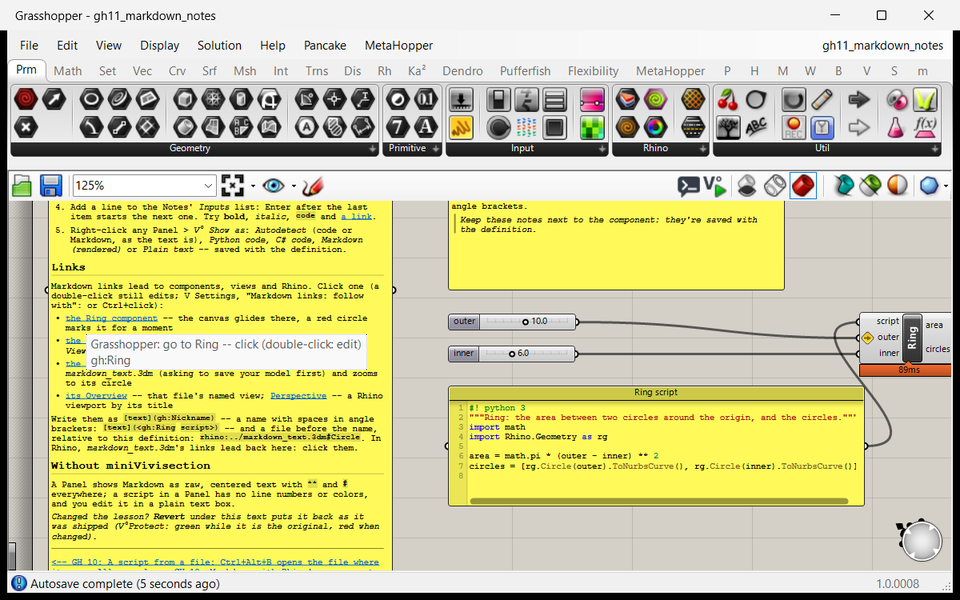
- A Panel holding a Python or C# script shows it as code: line numbers, syntax colors, no wrapping. Double-click to edit it right on the canvas.
- Show as in the Panel's menu (miniVivisection: Show as): Autodetect, Python, C#, Markdown or Plain text, saved with the Panel.
- After Ctrl+Alt+B the Panel opens at the line where its component stopped, with what happened.
- A component with a script input: a double-click opens its script and library files.
# async:truein a Python script component runs it on a thread of its own: Rhino and Grasshopper stay usable while it computes.
Markdown and links
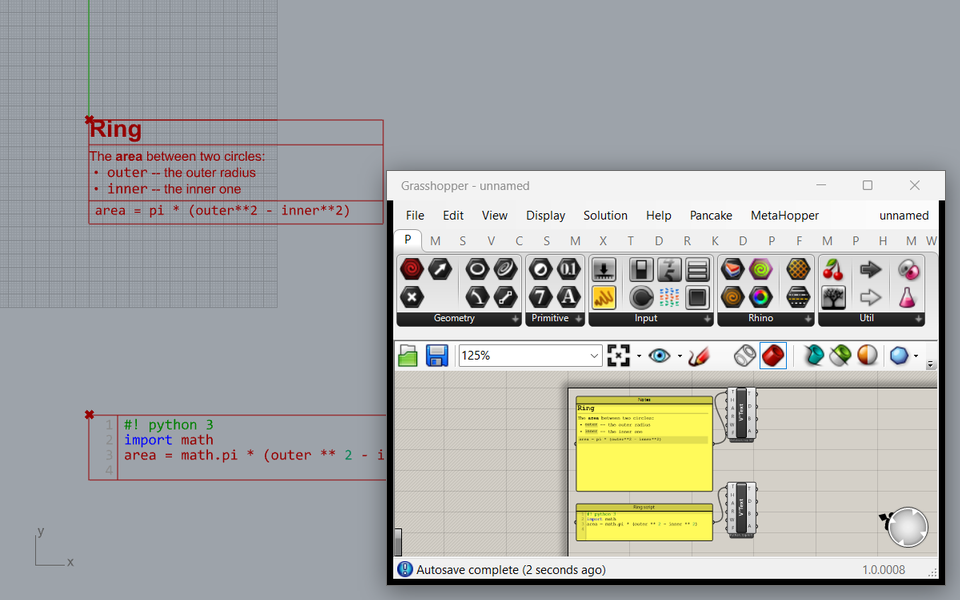
- Panels render Markdown with Rhino's own parser; a double-click edits the source where you clicked. Panels fed by another one too.
- Links to components (
gh:Ring), saved canvas views, Rhino objects and views, web pages; across files, from a definition into a Rhino model and back. Click to follow, as in Rhino.
V°Text component
- A Panel's text as Rhino text, as the Panel shows it: Markdown laid out, a script as code with line numbers and syntax colors.
- Height in points, the anchor at any corner, an angle, a width, a font picker. Bake makes Rhino text you double-click to edit.
What it looks like.
Rhino 8, its Script Editor and Grasshopper with miniVivisection 0.2.0. Click a picture for its full size.
![Grasshopper: a red Divide component and its right-click menu with miniVivisection's items, Debug failing run 7 -- data {0;2}[0], line 4, and Copy failing branches.](screenshots/05_which_branch_failed.png?b=370)
![Rhino's Perspective view with a red lofted surface and one blue profile curve marked by the name dot V°Edit [1]; over it the Grasshopper window with the V°Edit component between Profiles and Loft, showing 1 in Rhino.](screenshots/11_v_edit.png?b=370)
The latest build.
One Rhino package (.yak): the plug-in, its Grasshopper part, the examples and the manual. Get it from Rhino's Package Manager, or drag it onto Rhino 8.
| Version | 0.2.0, build 370 (experimental) |
| Built | 2026-10-25 22:53 UTC+3 |
| Size | 7.1 MB, 62 files |
| Contains | miniVivisection.rhp (the plug-in), miniVivisection.GH.gha (the Grasshopper plug-in: V°Edit, V°Text, Panels as code and Markdown, links), 17 example lessons, 12 Grasshopper lessons and a Rhino example with Markdown text, the examples guide (PDF), the manual (PDF and Markdown), a feature test script, the license (MIT) |
| Requires | Windows, Rhino 8.36 or later (tested with 8.37) on .NET Core (Rhino 8's default), not .NET Framework; Python 3 scripts in the Script Editor |
| Optional | Claude Code (the claude command) for V°Claude; McNeel's RhinoAI for Claude in the Rhino model (offered for install) |
Install
- Installed miniVivisection from a zip before? Close Rhino and double-click the removal tool (one file,
miniVivisection_Remove_Old_Install.cmd; if Windows says it protected your PC: More info, Run anyway). It shows what it found, asks, and removes the old copy's registration and Grasshopper link, so Rhino doesn't find the plug-in twice; it keeps a backup. - In Rhino 8: command PackageManager, search for miniVivisection, tick Include pre-releases (it's a beta), Install. Or drag the downloaded
.yakfile onto Rhino 8's window. Then restart Rhino. - Open the Script Editor: its top bar now shows miniVivisection 0.2.0 with the V°AI and V°Debug switches and V°Help.
- V°Edit and V°Text are on Grasshopper's miniVivisection tab. If Grasshopper was already open, restart it.
- Try the lessons: Script Editor > Examples > miniVivisection. Grasshopper lessons:
%LOCALAPPDATA%\miniVivisection\lessons\grasshopper. - Updates: PackageManager offers newer builds, however miniVivisection was installed (keep Include pre-releases ticked). To remove it: PackageManager, Installed, miniVivisection, Uninstall.